
Can AI Unblur a Photo? Here’s What Actually Works
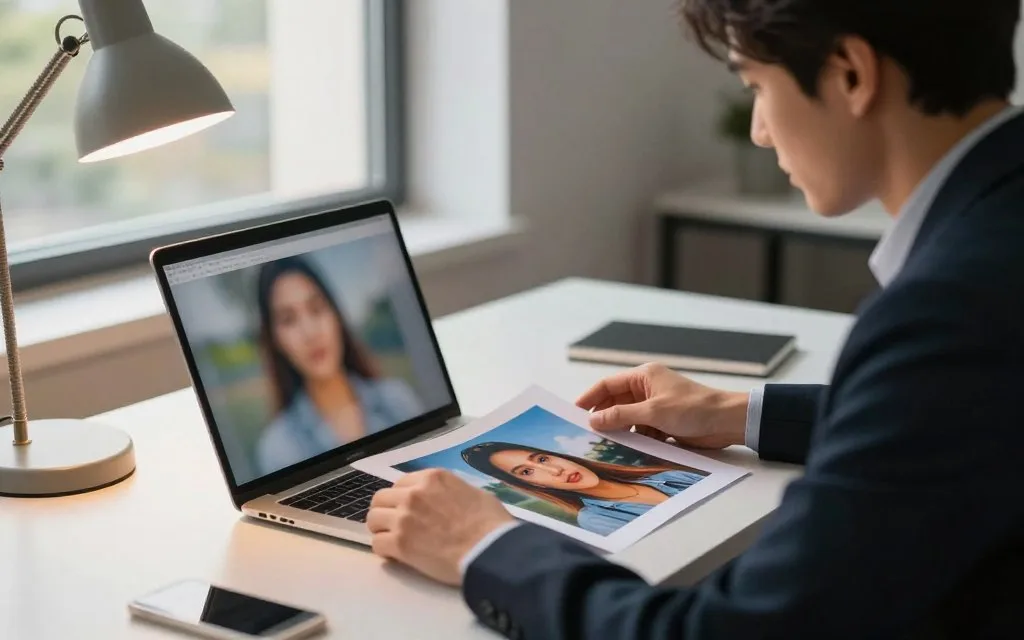
AI can often make a blurry image look clearer, but it cannot always recover the detail the camera never recorded. A soft face, shaky pet, or blurred label can leave you unsure what the content really shows. That matters when a photo holds a memory, supports a work task, or needs to look right in a listing.
AI enhancement can estimate missing detail from shapes and patterns that remain. That estimate may improve visual quality, yet it can also add details that were never captured. A useful result depends on the original file, the kind of blur, and how you plan to use the image.
You can make a careful choice by checking the file, testing a copy, and inspecting the result. You will see what to look for before sharing or relying on an edit. Treat any enhanced result as an edit, and keep the unedited original.
Key Takeaways
- AI can improve some soft or shaky images.
- Clearer does not always mean more accurate.
- Start with the best original file you can find.
- Check faces, text, edges, and texture after processing.
- Keep the unedited original for comparison.
Can AI Unblur a Photo?
Yes, AI can make many blurry photos look clearer by estimating details from the image that remains. AI can unblur a photo online through a browser tool, but the result is an estimate when the source lacks enough detail.
AI restoration looks at visible edges, shapes, and nearby patterns to infer likely details. It may use the shape of a face or a familiar texture to fill gaps. That can create a convincing result, but a plausible reconstruction is not proof of what the camera captured. Convincing is not the same as accurate.
Traditional sharpening works differently. It raises contrast along edges, so borders look more distinct without rebuilding missing information. Deconvolution is an image-processing method that estimates and reverses the blur introduced by motion or focus. It models the blur rather than simply darkening an edge.
Do not use reconstructed details as proof of what an unreadable image originally showed.
A face may look more defined after enhancement, while its eyes or skin texture differ from the original. The same issue applies to a letter, logo, or pattern. The image can seem clearer even when the added details do not match the real scene.
Research on single-image reconstruction also describes limits in estimating detail from one low-quality image. A 2013 study of super-resolution limits examines the challenges of rebuilding resolution from a single image. Use an enhanced copy for appearance, not as a record of facts the original cannot show.
For personal photos, that distinction may affect how you remember a moment. For evidence, identity checks, or product claims, it can matter even more. Keep the original available and judge the output by the purpose it needs to serve.
Do not use reconstructed details as proof of what an unreadable image originally showed.
What Kind of Blur Is Affecting the Image?
Streaks that run in one direction usually point to movement, while evenly soft edges more often suggest missed focus. Look at the shape of the blur before choosing a correction. A photo can also combine more than one cause.
Blur can come from a moving subject, camera movement, or incorrect focus. A 2025 image-deblurring research paper describes global motion, local motion, low-light blur, and defocus blur. Those patterns matter because one correction may not suit every soft area in an image.
Motion Blur and Camera Shake
Motion blur often leaves a directional smear on the moving subject. If the camera moved, edges across much of the frame may streak in a similar direction. A stationary wall can stay crisp while a person walking in front of it appears stretched or doubled.
Look for repeated edges, trails, or a subject that seems to lean along one line. Camera shake may affect the whole frame, though a nearby object can show it more strongly. A long exposure can also record movement during the time the shutter stays open.
Movement is not always uniform. A turning head may blur while the body stays clearer, which can create local motion. In dim light, the camera may use a longer exposure, and noise can appear alongside the blur.
Missed Focus and Defocus
Missed focus usually looks soft without a clear directional streak. Fine edges lose definition across the subject, such as a portrait where the eyes and hair seem equally hazy. Defocus can affect the foreground, background, or both, depending on where the camera focused.
Low-light conditions can combine soft detail with noise, making the image look grainy as well as blurred. A bright background may also distract from a soft subject, but it does not show where focus landed. Compare several edges before you decide which cause seems most likely.
Identify whether the subject, the camera, or focus is the likely cause before processing.
How Much Detail Can AI Restore?
AI has the best chance when the subject’s outline and some edge information are still visible. It can estimate detail from surviving structure, but it cannot verify details that are absent. A result can improve clarity without recovering the original scene.
Extreme pixelation, clipped highlights, and heavy compression can hide useful edges. JPEG compression artifacts may resemble real texture, so an enhancement can build on the wrong pattern. A clean-looking result may also lose fine texture when noise reduction smooths the image.
These four conditions can sharply limit recovery:
- No recognizable outlines remain around the subject or key objects.
- Very low resolution leaves too few pixels for useful shape information.
- Strong compression artifacts replace fine edges with blocks or ringing.
- Blown highlights or deep shadows hide detail in those areas.
Each condition removes clues that an image-processing tool could use. A face may retain its broad shape while losing its eyes. A dark coat may show its outline but no fabric texture.
Noise reduction may make a picture cleaner while smoothing skin, hair, or small surfaces. That trade-off can be useful for a small preview, but it may flatten texture in a larger image. Inspect a generated-looking eye, letter, or hair strand with care.
A single-image reconstruction can create a sharp-looking guess from incomplete pixels. That guess may suit a casual display, but it does not establish what the original detail was. Compare any important feature with another trustworthy version of the scene.
If the image has no recognizable structure, look for another original instead of expecting an accurate reconstruction.
How Do You Unblur an Image Online?
Start with a copy of the highest-quality original file you can find. Use a three-stage process: prepare a copy, process and compare, then export. That keeps your original safe while you test an online tool.
Common image file types include JPEG, PNG, and HEIC. A browser tool may accept only some of them, so check the upload options before you begin. If the file contains private content, read how the service handles uploads and personal data, including the site’s privacy policy details.
Prepare a Copy and Choose a Tool
Leave the original untouched, then make a copy for processing. Choose a browser-based tool that accepts the copy’s file type and size. Upload the duplicate, not the only version you have.
Use a file from the camera or an earlier export when possible. A file that has passed through several apps may already have lost detail through resizing or compression. Avoid enlarging it before upload unless the tool asks you to do so.
Some services process images on a remote server, while others may process them on your device. The difference can matter when a photo shows a child, home, document, or private work. Read the tool’s upload and privacy terms before sending a sensitive image.
Process, Compare, and Export
Run the enhancement once, then place the original beside the result. If the tool offers a strength control, try a modest setting before a stronger one. A high setting can make the image look more dramatic without making it more faithful.
Look at the full frame first. Then inspect a close crop of the subject, edges, and small details that matter. A result may seem sharp when enlarged, yet look harsh at the size where you plan to use it.
Download only after checking the image at its normal viewing size. Keep the original and the processed copy in separate files so you can tell them apart later. Compare the full image and a close crop before saving the version you plan to use.
How Can You Tell Whether the Result Looks Real?
A result is useful only if it looks clearer without changing important features. Check for new artifacts as well as improved sharpness. A visual review is needed even when a tool reports a high image-quality score.
PSNR and SSIM are image-quality metrics that compare image data in different ways. They can help measure changes, but they cannot decide whether a particular face, label, or design looks believable. Your eyes still need to check the details that matter for this image.
| Visible issue | What to inspect | Possible artifact | Practical check |
|---|---|---|---|
| Halos | High-contrast edges | Bright or dark outline | Compare the edge with the original |
| Waxy texture | Skin, hair, or fabric | Smooth repeated surface | Check a face and nearby texture |
| Facial distortion | Eyes, mouth, and jaw | Changed small features | Compare the same crop side by side |
| Changed text or logos | Letters and brand marks | Altered strokes or shapes | Read the original before accepting |
Use this quick inspection routine at normal size, then zoom in only where a concern appears:
- Look along high-contrast edges for bright or dark halos.
- Check skin and hair for smooth or repeated texture.
- Inspect straight lines and product edges for bends or breaks.
- Compare text and brand marks with the unedited image.
A detail can be technically sharper and still look wrong. Repeated texture may appear on a wall or sweater, while a face may gain uneven eyes. A product edge can also grow a thin outline that was not present before.
Keep the original beside the enhanced version whenever a detail matters.
Which Free Online Unblur Tool Fits Your Needs?
For a no-cost starting point, choose a tool whose free access matches how many images you need to process. Free access has limits, and those limits differ by service. Canva, ElevenLabs, and Unblur Image’s local model state no-cost access, while Nero AI offers a credit-based trial.
An app to make blurry pictures clear for free can be a browser tool such as Canva, ElevenLabs, or Unblur Image’s local model, with access and limits depending on the option. Canva Free costs US$0 with no time limit and includes 5GB of storage. A guide to creating AI business photos covers a separate task: generating headshots from selfies, not restoring a captured photo.
| Tool | Access or allowance | Distinctive control or workflow | Practical limit or output |
|---|---|---|---|
| Canva | Free plan; up to 20 shared Standard or Premium AI uses monthly | Image Upscaler is a Standard AI tool | No Ultra AI uses on Free |
| ElevenLabs | Offers free unblurring | Choose from a menu of AI models | Downloads processed images as PNG |
| Unblur Image | Local model has no account or credits; cloud UModel gives free daily credits | Local processing or cloud processing | Cloud uploads up to 50 MB; 1K, 2K, and 4K cost 1, 2, and 3 credits |
| Nero AI | 10 free trial credits | Processing uses 4 credits each | Accepts JPG, JPEG, PNG, BMP, WEBP, JFIF, JFI, JPE, JIF, ICO, and AVIF |
| Picsart | Browser-based AI Enhance | One-button enhancement and batch processing | Batch processing supports up to 50 images |
Canva Free includes up to 20 shared monthly AI uses across Standard and Premium features, as of September 2026. Its Image Upscaler counts as a Standard tool. The allowance resets at 12:00 a.m. UTC on the first day of each month, and free AI features pause after you use it.
Canva Pro costs US$144 a year for one person. As of September 2026, it includes up to 200 Premium AI uses or up to 20 Ultra AI uses per month. Those limits suit different workloads, so check the type of use your chosen feature requires.
UnblurImage accepts PNG, JPG, and HEIC, and advertises 4x and 4K upscaling. Its cloud UModel uses daily credits, while its local model runs on-device without an account or credits. Choose based on whether you value local processing or cloud controls.
Nero’s trial is not unlimited, and four credits cover one processing action. Picsart may suit a group of images because its batch feature handles up to 50 at once. A free tool can be enough for a test, but recurring use may need a paid plan.
Check whether a tool processes locally or uploads the image before choosing it for a sensitive file.
How Does Canva Unblur an Image?
In Canva, select the image in a design and open Edit > Tools > Upscale to run the Image Upscaler. The one-click result comes first, with sliders available for further adjustment. You can start from a blank canvas, template, or existing design.
Canva works in a browser, desktop app, or mobile device. Upload an image into a design, or select one already placed there. After the upscale runs, preview the change before altering sharpness or clarity.
The sharpness slider can make edges seem more defined, while the clarity slider adjusts the appearance of fine detail. Move them in small steps and watch the preview. More adjustment is not always better, especially around hair, text, or a soft background.
Compare the result at the size you intend to use. A portrait displayed small may need less sharpness than a large product photo. Check the eyes, hair, and nearby background so the subject does not look cut out.
Canva exports designs as JPG, PNG, or PDF. Its unblur page advertises a free tool with no watermark, though the feature’s use still depends on the plan allowance. Keep the same crop while comparing so you can judge the edit fairly.
Review the slider changes against the unedited image before downloading.
What Can Topaz Unblur Fix?
Topaz Unblur is designed for soft-focus blur, motion blur, and other common image-blur problems. Its browser tool lets you choose the blur type and the area to process. You can target the subject or apply the correction to the full image.
Soft-focus blur makes the subject look hazy without a strong streak. Motion blur can stretch edges in the direction of movement. The tool offers controls that let you select a blur type before processing, which can help you test a closer match.

The subject-only option may be a controlled first try for a portrait against a naturally soft background. It can leave the scene around the person less affected. A full-image setting may make more sense when the camera movement softened the whole frame.
Check whether hair edges look natural against the background. A cutout-like outline can make the subject seem separate from the scene. Compare the subject and background together, not just the face at high zoom.
Topaz advertises browser processing with no watermarks. Test the same copy with subject-only and full-image processing if the scene includes a soft background. Compare subject-only and full-image processing when the background should remain naturally soft.
How Do You Use ElevenLabs to Unblur an Image?
ElevenLabs’ unblur workflow starts with an image upload and a model choice. To unblur an image with ElevenLabs, upload the file, choose an AI model, and download the result after checking it. Keep the steps simple so you can compare the output with the right original.
First, upload a copy of the image you want to process. Then choose a model from the tool’s menu. The model choice is part of the workflow, so test one output before deciding whether it suits your photo.
After processing, download the result and open it beside the untouched file. Check it at the size where you plan to view or share it. A close crop can reveal texture changes, but the normal-size view shows whether the edit feels natural.
For a portrait, inspect eyes and hair without assuming that added detail is original. For a product image, check its edges and surface. For a scene, make sure the background has not gained patterns that change its look.
ElevenLabs offers free unblurring and exports the result as PNG. Keep the copy you uploaded, rather than replacing it with the processed version. That gives you a clear point of comparison if you revisit the edit later.
Keep a copy of the uploaded original so you can compare the downloaded version.
Is Remini Worth Trying for Blurry Photos?
Remini is a mobile option to test when facial detail is the main priority. Try it on one copy before choosing a paid subscription. Its portrait focus may suit a soft headshot, but a more defined face does not prove that every new detail is accurate.
On Google Play, Remini subscriptions are weekly or yearly and renew automatically unless you turn off auto-renewal at least 24 hours before the current period ends. The U.S. App Store listing offers weekly, monthly, and yearly subscriptions with the same cutoff.
The U.S. App Store listing has a 4.6 out of 5 rating from 358K ratings. That is a rating of the app, not a promise that it will improve your particular photos. Test the result on a copy and decide whether its look suits your portrait.
Subscription timing matters if you only want to try the app. Check which store handles the purchase, since available plan choices differ between Google Play and the App Store. Keep track of the renewal date shown for your selected plan.
Remini can be worth testing when portraits matter more than other image types. Decide whether the facial result looks natural before paying for ongoing use. Turn off auto-renewal at least 24 hours before the current subscription period ends if you do not want it to renew.
Can You Unblur an Image Without AI?
You can make a slightly soft image look crisper without AI by applying restrained sharpening in an editor. Sharpening increases edge contrast; it does not reconstruct detail. Photoshop and GIMP both offer conventional editing controls for this task.
An Unsharp Mask is a sharpening tool, despite its name. It boosts contrast along edges to make them stand out. That can help an image with intact edges, but it cannot reverse blur that has already hidden those edges.
Sharpening in Photoshop or GIMP
Work on a copy, then apply a modest amount of sharpening. Check the image at its normal size before making another change. If you sharpen only while zoomed in, an ordinary photo can begin to look harsh when viewed on a screen.
Watch areas with strong contrast, such as a dark coat against a pale wall. Too much sharpening can create a bright or dark halo along that edge. It can also make noise more visible in a dim background.
Use the editor’s preview to compare the change with the original. A small adjustment may be enough when the subject already has clear outlines. Save the edit separately so you can return to the softer version.
When Basic Sharpening Is Enough
Basic sharpening is most useful when an image looks slightly soft but its edges remain intact. Motion blur or missed focus may have already obscured detail, which a contrast adjustment cannot restore. In those cases, stronger sharpening can only make the remaining edges harsher.
Noise is another reason to keep the effect restrained. Grain can become more visible along with the edge contrast, especially in shadows. Look at hair, skin, and smooth walls to see whether the adjustment adds useful definition.
Back off the sharpening if grain, halos, or hard outlines become more noticeable than the subject.
Which Photos Benefit Most From AI Enhancement?
AI enhancement is most useful when the image still contains recognizable structure and the reader knows which details matter. Match the review to the image’s purpose, not just its apparent sharpness. Portraits, product photos, and older photographs are common restoration uses.
A clean background does not guarantee that a reconstructed subject detail is accurate. The main subject may still gain plausible-looking texture that the original never recorded. Decide what must remain true before using the edit.
| Image type | Detail to inspect | Useful outcome | Main caution |
|---|---|---|---|
| Portraits | Check eyes, hair, and skin | Clearer face for a small display | New facial texture may be estimated |
| Product photos | Inspect fine edges and surface color | More defined shape for a listing | Altered edges can misstate the item |
| Older photographs | Look at faces and worn texture | More visible structure for viewing | Added texture may not match the past |
| Design or artwork | Check line work and color blocks | Sharper display of a design | Small shapes may change during processing |
For a portrait intended as a professional headshot, restoration differs from generating a new image from a selfie. A guide to AI business headshots covers that separate use. Natural light, a neutral background, and simple clothing can help when you take a new selfie for that purpose.
Product photos need a different review from portraits. Check the product’s surface color and small edges, not just its overall outline. A glossy item may show reflections that an enhancement changes into false texture.
Older photographs can hold damaged or faded details that are hard to confirm. An enhancement may make a face easier to view, while its added marks remain estimates. Keep a clean scan or source file alongside any restored copy.
For a product listing or branded design, verify every logo, label, and edge against the original.
How Can You Make Blurry Text Easier to Read?
AI may make blurry letters easier to inspect, but it cannot confirm a word that the image does not preserve. Check every important character against a reliable original. A clearer-looking line can still contain a changed letter or number.
Enlarge text enough to see whether strokes remain distinct or have merged. A screenshot or scan may preserve different information from a photograph, so use the clearest version available. PNG is commonly useful for sharp-edged text graphics.
Text in Screenshots and Scanned Pages
For a screenshot or scanned page, inspect the shape of each letter after enlargement. Look for strokes that have joined, disappeared, or changed shape. A tool may clean up a page while making an uncertain character look more certain than it is.
Optical character recognition, or OCR, can suggest candidate words from text in an image. It can help you compare possibilities, but it does not establish what an unreadable image said. Check the image itself before relying on the suggestion.
Text Inside Photographs
A sign or label can remain sharp when the rest of a photo looks soft. Text obscured by movement or missed focus may have lost the letter strokes needed to read it. Enhancement can help with legibility, but it cannot prove a hidden word.
Use this four-part check before relying on enhanced text:
- Compare each character with the original.
- Inspect whole words, not only single letters.
- Confirm line spacing and punctuation.
- Verify consequential text independently.
A short word may be easier to guess from context than to read from pixels. Names, serial numbers, dates, and instructions need extra care because one changed character can alter their meaning. Do not treat a likely guess as a confirmed reading.
Verify important names, numbers, and instructions from a reliable original rather than a reconstructed image.
Which File Format Should You Download?
Choose the format according to the next use, not simply the largest file size. JPEG suits many photographs, PNG keeps lossless image data, and TIFF can serve as a high-quality master. Each format makes a different trade-off.
File choice does not restore details lost before the download. A larger file may hold more data from the edit, but it cannot add information the camera never captured. Keep an editable or high-quality copy if you expect further work.
| Format | Good fit | Trade-off | Typical destination |
|---|---|---|---|
| JPEG | Photographs for everyday sharing | Lossy compression can reduce image data | Web pages and photo messages |
| PNG | Graphics with sharp edges or transparency | Often larger than a similar JPEG photo | Text graphics and transparent designs |
| TIFF | High-quality master files | Can take more storage space | Editing and print workflows |
JPEG uses lossy compression and is common for photos. PNG is lossless and supports transparency, which can help with graphics. TIFF is often used when keeping a high-quality master matters.
For printing, about 300 pixels per inch is a common target at the final print size. That figure does not guarantee good image quality if the source is blurred or small. The pixel dimensions and the size of the print work together.
A file can grow when you save it in a different format, but that change does not recover lost detail. Keep the pixel dimensions that suit the planned display or print. Check the pixel dimensions and intended print size before sending an image to a printer.
What Should You Do if AI Cannot Fix the Original?
If an enhanced image still looks wrong, stop increasing the effect and look for a better source. A verified original or another capture is safer than a stronger reconstruction when accuracy matters. A processed copy cannot replace information that was never recorded.
Try these next steps before spending more time on the same blurry photos:
- Locate the original file or a RAW version.
- Check backups and earlier exports for more detail.
- Ask the photographer whether another frame exists.
- Retake the image when a new capture is possible.
A RAW file can retain more original capture information than a compressed JPEG. An earlier export may also preserve more useful detail than an aggressively enhanced copy. Check more than one saved version before deciding the image cannot work.
EXIF metadata can include capture details such as camera settings. That information may help you understand the conditions behind a shot, but it does not restore missing pixels. A backup or second photograph may contain the detail the processed copy lacks.
Choose a new capture or a verified original whenever accuracy matters more than a quick visual fix.
If another frame exists, compare it before editing either version. The photographer may have captured the same subject at a different moment, with clearer focus or less movement. A new photo can be more useful than trying to force the first one to work.
Choose a new capture or a verified original whenever accuracy matters more than a quick visual fix.
Conclusion
AI can be a useful way to improve a blurry image when enough of the original structure remains. Its estimates can make soft or shaky content easier to view, but added detail may not reflect what the camera recorded.
Keep the original, then test a copy at the size and for the purpose you need. Check the result beside the source, especially where faces, text, or product details matter. Upload a copy of the image, compare the result with the original, and use the enhancement only if its details remain credible for your purpose.
Leave a Reply